


The Office of Information Technology provides a number of services for faculty and staff at Monroe County Community College, as well as a number of resources to help you resolve and/or report problems.
SUPPORT SERVICES
The Office of Information Technology provides technical support for classrooms and conference room technology. We also maintain and replace equipment as needed throughout the Main Campus and Whitman Center.
Please report any problems you are having with classroom and or conference room technology via our FMX work order system.
https://monroeccc.gofmx.com choose the Technology Request tab
- Open your web browser, copy and paste this address: https://monroeccc.gofmx.com/
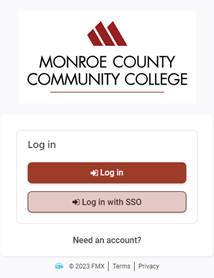
(Note: I would save this as a bookmark on your browser for future reference) - The following box will appear:
-
You will want to click on the bottom button where you log in with SSO. It should log in automatically using your credentials that has been set up by our I.T. Department already.
Use the following link with a training video to show how to properly submit a work request: https://help.gofmx.com/hc/en-us/articles/360003627471-User-Training-Video-Work-Requests
As always if you have any questions please contact us via the information listed for you at the bottom of this page. For future reference if you have any technical support questions for the FMX Customer Support Team please email them at support@gofmx.com.
For immediate assistance, please call ext. 4234.
Using a strong password is important and the following guidelines should be considered when creating a strong password:
- Must be at least 12 characters and must be changed every 370 days.
- Multi-Factor Authentication (MFA), will be required every 125 days (Once a semester)
- Cannot contain your username or any part of your username.
- Passwords are private and should not be shared.
- Your password is case sensitive.
Additional tips
- We recommend using a phrase e.g.: (donotusethispassword), (forgetThe0ldway!)
- Do not use single dictionary words.
- Do not use sequences or repeated characters.
- Do not use personal information.
Pick a password that will not be easily guessed. A password must contain at least 12 characters. The longer the password the better, as each added character makes the password more secure.
How to Change Your Windows Password at Your Desktop
- Log into your on-campus system.
- Once logged in, press “Ctrl + Alt + Delete,” and then click Change a Password.
- Type your old password. Type your new password, and then type your new password again to confirm it. Then press “Enter.”
How to RESET your Email Password
https://passwordreset.microsoftonline.com/
How to self-reset your email password
NOTE: When you change your password in either your Windows or Outlook Web Access, it is changed for both. You will also need to change the password on all your devices used to connect to the monroeccc wireless network and work email to the new password. Failure to do so will result in too many login tries and lock you out of your account.
Example: You are at your work computer in your office and you press Ctrl + Alt + Del and change your system password, so now it is also changed for your Outlook email. You must change your password for all devices that you use to connect to the monroeccc wireless and work email like your Windows Laptop, Android phone/tablet, Chromebook, iPad and iPhone.
How to Encrypt your Email
How to setup Multi-Factor Authentication for your Email
How to setup Multi-Factor Authentication for your Email
Disable MCCC Email on Lost or Stolen Devices
Disable MCCC Email on Lost or Stolen Devices
MCCC has taken additional security measures to further protect faculty and staff email accounts by implementing a Barracuda Spam Firewall. Barracuda will be used to scan all incoming Internet e-mail before it reaches the Outlook system.
What does this mean for you as an Outlook user?
- The amount of unsolicited commercial e-mail (commonly referred to as spam) that you receive will be drastically reduced.
- Your e-mails will be scanned for viruses before they get to your inbox.
- You will have an option to receive a daily Quarantine Report alerting you when suspected spam and viruses have been intercepted.
- You will be able to choose from the Quarantine Report, the blocked messages you would like to see or delete or you may elect to simply delete them all.
- You will be able to maintain an “allowed sender list” of senders from whom you always wish to receive e-mail and a “blocked sender list” of senders from whom you never wish to receive e-mail.
- You and all other MCCC Outlook users will be protected from information gathering and exploitation techniques frequently used by hackers.
Monroe County Community College information technology users are required to read and accept the terms of service as described in the MCCC acceptable use policy.
Logging In To The MCCC Wireless Network
Logging In To The MCCC Wireless Network
Note: all staff and students should be using the monroeccc network with your college provided credentials
Choose one of two options as noted below
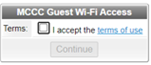
- Select: monroeccc-guest
Quick unsecure access- Check I accept terms of use. Wait….it takes up to a minute to open a page.
- Select: monroeccc
Secured access - Needs username: mcccguest (or your college user name)
- Needs password: guestmccc (or your college email password)
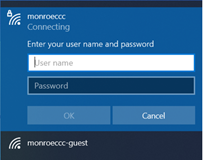
- Check I accept terms of use. Wait….it takes up to a minute to open a page.
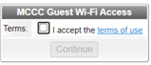
MCCC Wireless Network Log-in Information
For assistance, please call the Information Systems Department at (734) 384-4234.
Please note: If you get a certificate error, it is safe to proceed.
Some devices you can use to connect to the college wireless network: Windows Laptop, Android phone/tablet, Chromebook, iPad and iPhone.
- A laptop or device with either built-in wireless capabilities or a wireless Ethernet card.
- An internet browser like Microsoft Edge, Mozilla Firefox or Google Chrome.
- Your device must support Wi-Fi Protected Access (WPA2)
Printing: The wireless network does not connect to any printers on campus. You will need to save to a disk and take it to a lab with a printer.
Library database access: On-campus access is automatic from your computer. If you are logged in to the campus wifi, your access is automatic. Off-campus access is available to MCCC EMPLOYEES: From the MCCC library home page, click on the A-Z Database link. Click on the database you want to search (make sure your computer settings allow cookies and pop-ups). You will get a screen that asks for: MCCC Faculty/Staff: Log in using your unique MCCC network username and password.